Essential Office Accessories for Maximum Productivity
Your workspace shapes your productivity more than you might think. The right accessories reduce physical strain, eliminate friction points, and create an environment where focused work feels natural. Here is a practical guide to the accessories that make a measurable difference.
Table of Contents
- Ergonomic Keyboard and Mouse
- Monitor Arm or Stand
- Desk Lamp with Adjustable Color Temperature
- Webcam for Video Calls
- USB Hub and Cable Management
- Laptop Stand
- Headset for Calls and Focus
- Desk Converter for Standing
1. Ergonomic Keyboard and Mouse
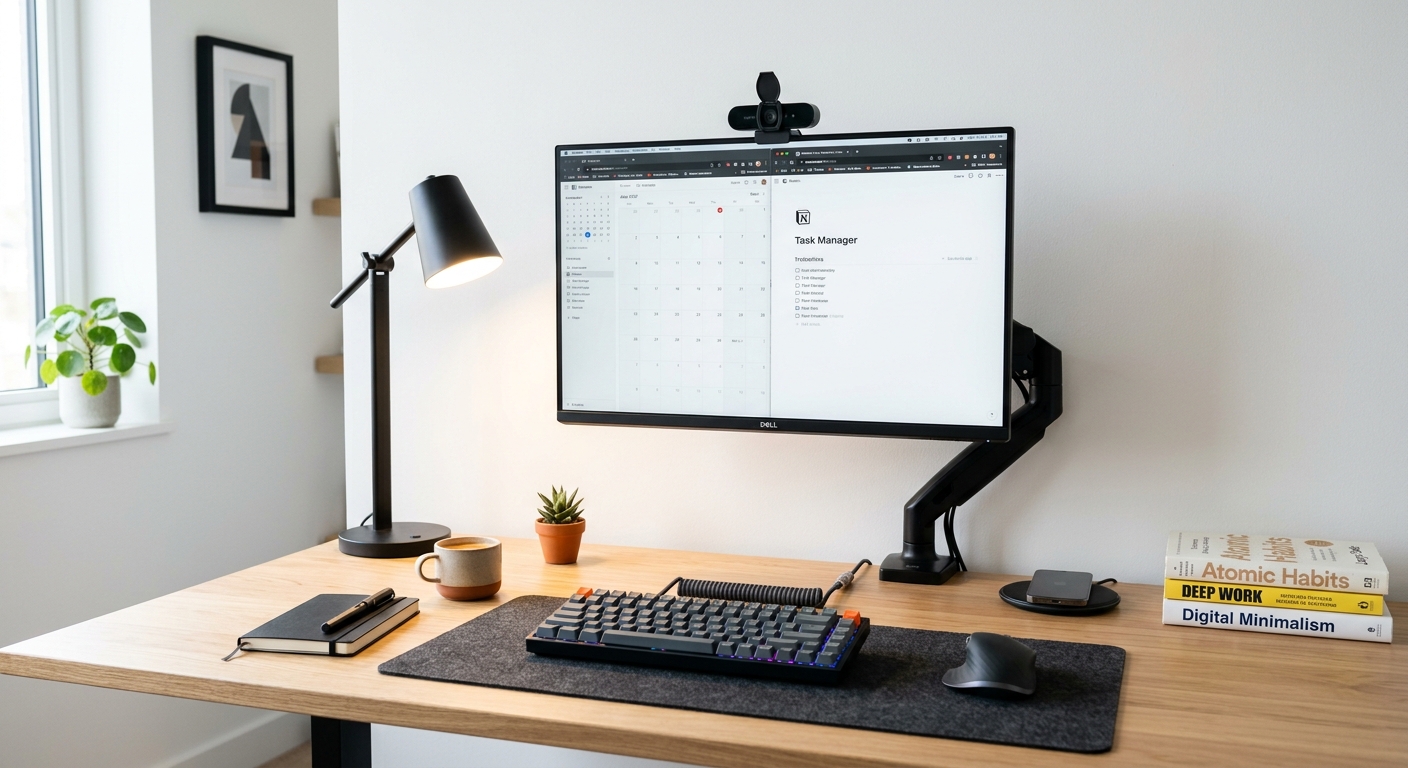
Standard keyboards and mice force your wrists into unnatural positions that cause strain over time. Ergonomic keyboards with split designs keep your forearms in a neutral position, reducing wrist pain and the risk of repetitive strain injury.
A vertical or angled mouse similarly reduces wrist pronation. The adjustment period is 3-5 days, but the long-term comfort improvement is significant. Look for models with programmable buttons to automate repetitive tasks.
2. Monitor Arm or Stand
The top of your monitor should be at eye level. Most desk monitors sit too low, forcing you to look down and straining your neck. A monitor arm provides full adjustability — height, tilt, rotation, and depth — and frees up desk space by eliminating the stand base.
For dual monitors, a dual-arm mount is essential. It allows you to position both screens at the same height and angle, reducing eye strain when switching between displays.
3. Desk Lamp with Adjustable Color Temperature
Lighting affects both eye strain and circadian rhythm. A desk lamp with adjustable color temperature lets you use cool white (5000K) during focused work and warm white (2700K) for evening tasks. This mimics natural daylight patterns and reduces end-of-day fatigue.
Look for LED lamps with CRI (Color Rendering Index) of 90 or higher for accurate color perception. Avoid lamps with visible flicker, which causes headaches over time.
4. Webcam for Video Calls
Built-in laptop webcams have poor image quality, especially in low light. A dedicated webcam with 1080p or 4K resolution, auto-focus, and light correction significantly improves how you appear on video calls.
Key features to look for: HDR for balanced exposure, field of view of 65-78 degrees (wide enough to show your face and shoulders, narrow enough to exclude background clutter), and a privacy shutter.
5. USB Hub and Cable Management
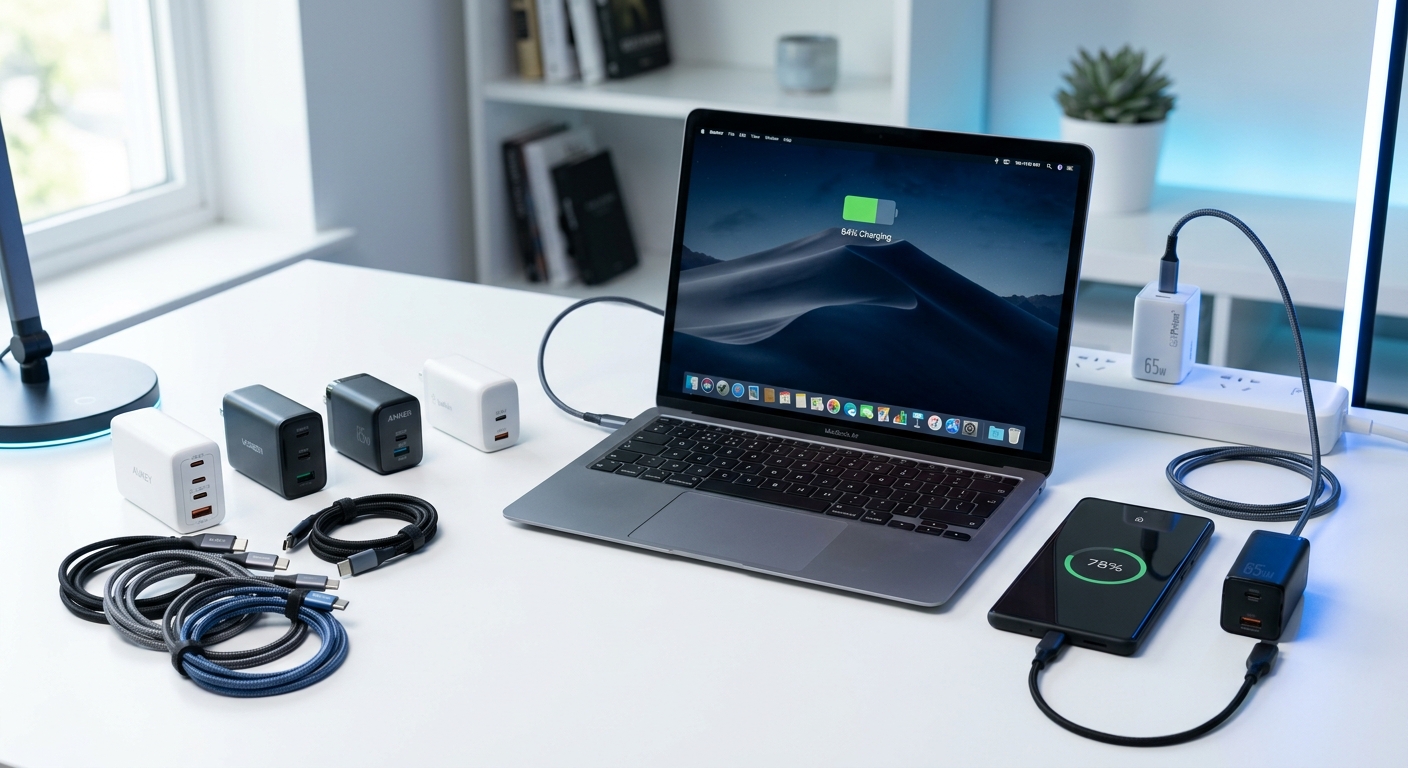
Modern laptops have fewer ports than ever. A USB-C hub with HDMI, USB-A, SD card, and Ethernet ports eliminates the need for multiple adapters. Look for hubs with Power Delivery (PD) pass-through so you can charge your laptop while using the hub.
Cable management is underrated. Simple solutions like adhesive cable clips, a cable sleeve, and a under-desk cable tray transform a tangled mess into a clean, professional workspace. This reduces visual clutter, which research shows improves focus.
6. Laptop Stand
If you use a laptop as your primary computer, a stand is non-negotiable. It raises the screen to eye level, eliminating the neck strain from looking down. Pair it with an external keyboard and mouse for a full ergonomic setup.
Aluminum stands provide better heat dissipation than plastic ones, which helps your laptop maintain performance during intensive tasks. Foldable stands are ideal for hybrid workers who move between locations.
7. Headset for Calls and Focus
A good headset serves two purposes: clear audio on calls and noise isolation for focused work. Look for models with a boom microphone (positioned close to the mouth) for professional call quality, and over-ear cups with passive noise isolation.
Active noise cancellation is worth the investment if you work in a noisy environment. It reduces background noise by 20-30dB, making it easier to concentrate in open offices or busy homes.
8. Desk Converter for Standing
A standing desk converter sits on top of your existing desk and raises your monitor and keyboard to standing height. It provides the health benefits of alternating between sitting and standing without replacing your entire desk.
Look for models with gas spring mechanisms for smooth height adjustment and enough surface area for dual monitors. The converter should be stable at full height — test for wobble before committing.
Conclusion
Productivity is not about working harder — it is about removing friction. Each of these accessories eliminates a specific source of discomfort or inefficiency. Start with a monitor arm and ergonomic mouse, which provide the most immediate improvement, then build out your setup based on your specific work patterns. The total investment for a complete ergonomic setup is $300-500, which pays for itself in reduced discomfort and improved focus within weeks.
FAQ
What is the most important office accessory?
A monitor arm or stand is the highest-impact purchase. Raising your screen to eye level eliminates neck strain, which is the most common physical complaint among office workers.
How much should I spend on an ergonomic setup?
A complete ergonomic setup (keyboard, mouse, monitor arm, lamp, and headset) costs $300-500. You can start with just a monitor arm ($50-80) and ergonomic mouse ($30-50) for immediate improvement.
Are standing desks worth it?
Research shows alternating between sitting and standing (not standing all day) provides health benefits. A converter ($150-250) is a cost-effective way to test if standing works for you before investing in a full standing desk ($400-800).